
Overview
Site Connectivity Checker
Abstract
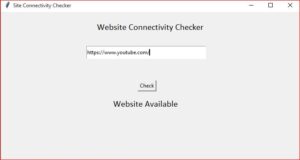
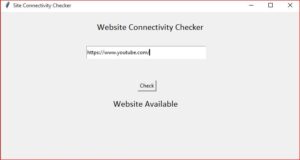
A site connectivity checker is a program that allows us to see whether or not a website can be accessed. Many times, once we open a URL, the site is not available. A site connectivity checker can assist us in avoiding such issues. The user just has to enter the url, and the accessibility will be displayed.
In this article we will be developing a simple Python project to monitor whether your website is up and running. Build this project using the urllib and tkinter libraries. This is a trivial project to learn a little bit about HTTP code. Let's start developing a Python Website Connectivity Checker project.

Code Description & Execution
Programming Methodology
In this code, we will import urllib module(Does operations by urls). Now we will build a GUI for an interface which looks pretty good by using some methods we will modify it like the size of the main window, font name, font size and colour of it. Create a function, then make a variable and load urllib module and then by open method open the url when the user import it in the url section. If the condition gets true then print website is available if not print website is not available.
How to Execute?
Note: Make sure you have added path while installing the software’s.
https://techieyantechnologies.com/2022/07/how-to-install-anaconda/
- Install the prerequisites/software’s required to execute the code from reading the above blog which is provided in the link above.
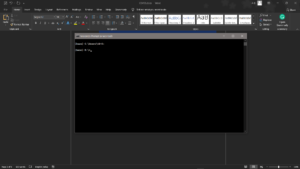
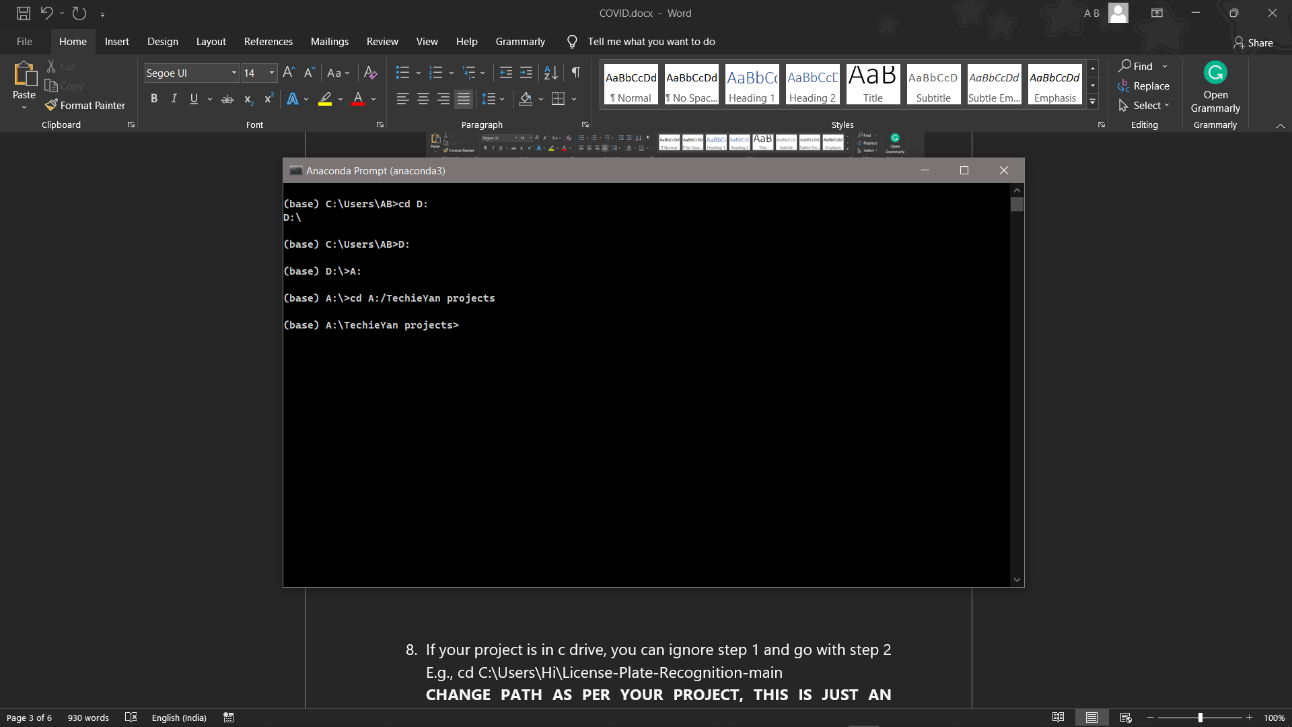
- Press windows key and type in anaconda prompt a terminal opens up.
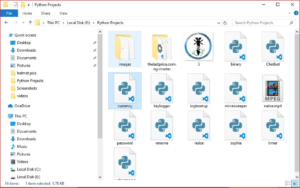
- Go to the directory where your requirement.txt file is present, not just requirement.txt, if you want to execute any .py or .ipynb files, you need to go to that specific folder or path, where they are saved.
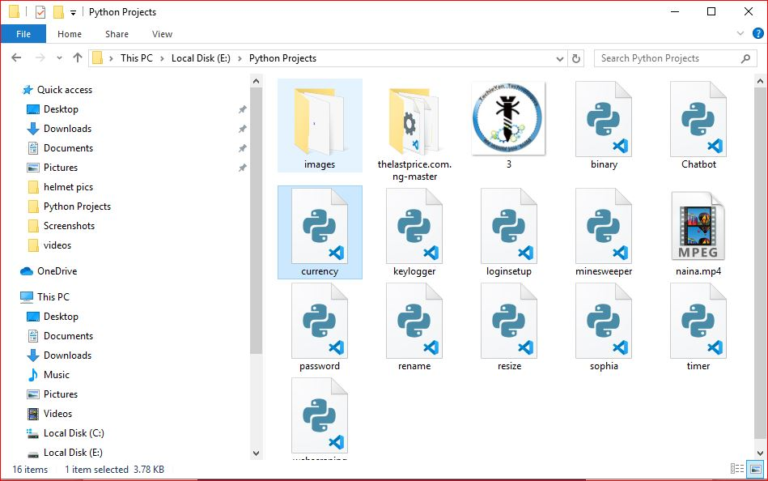
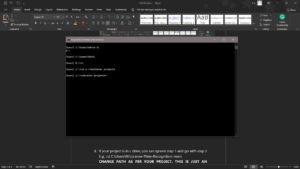
4.<<directory of your file:>>. E.g., If my file is in d drive, then
5.Type d:
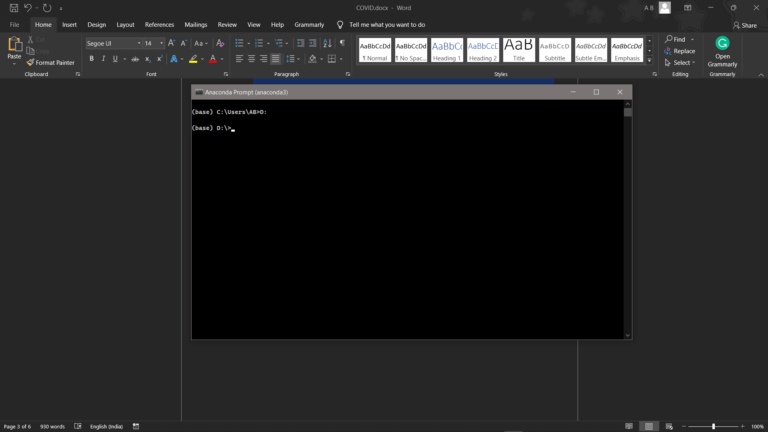
- cd d:License-Plate-Recognition-main #CHANGE PATH AS PER YOUR PROJECT, THIS IS JUST AN EXAMPLE
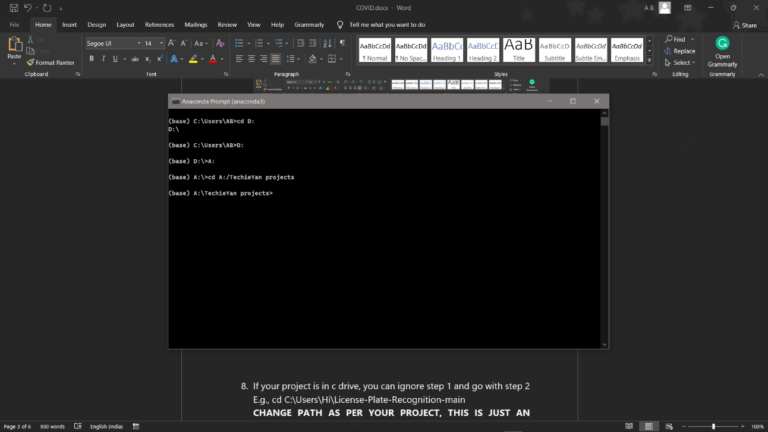
7. If your project is in c drive, you can ignore step 4 and go with step 5
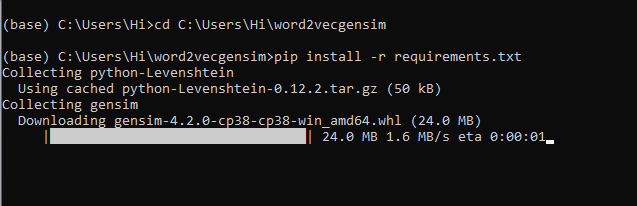
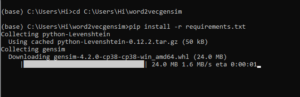
8. Run pip install -r requirements.txt or conda install requirements.txt (Requirements.txt is a text file consisting of all the necessary libraries required for executing this python file. If it gives any error while installing libraries, you might need to install them individually.), example: pip install “module_name” i.e., pip install pandas
9. If you would like to run .ipynb file, Please follow the link to setup and open jupyter notebook, You will be redirected to the local server there you can select which ever .ipynb file you’d like to run and click on it and execute each cell one by one by pressing shift+enter.
Note: There are 4 different files each seeves different purpose such as,
- ipynb consists of all the data cleaning steps, which are necessary to build a clean and efficient model.
- ipynb consist of major steps and exploratory data analysis which allow us to understand more about the data and behavior of it.
- ipynb consists of data reduction/dimensionality reduction techniques such as Sequential feature selector method to reduce the dimensions in the data and compare the model scores before and after dimensionality reduction.
- ipynb consists of combination of main.ipynb and variable_selection.ipynb to make it more clear and understable for the audience.
Please follow the above sequence if you would like to execute and the files require good system requirements to run.
Results

Issues Faced
- We might face an issue while installing specific libraries, in this case, you might need to install the libraires manually. Example: pip install “module_name/library” i.e., pip install wikipedia
- Make sure you have the latest or specific version of python, since sometimes it might cause version mismatch.
- Adding path to environment variables in order to run python files and anaconda environment in code editor, specifically in any code editor.
- Make sure to change the paths in the codeaccordingly where your music file and VS code is saved.
Refer to the Below links to get more details on installing python and anaconda and how to configure it.
https://techieyantechnologies.com/2022/07/how-to-install-anaconda/
Note:
All the required data has been provided over here. Please feel free to contact me for model weights and if you face any issues.




Need the source code or help?
Contact us for model weights, datasets, or guidance on running this project.